5 Claude to Markdown Extensions Compared for Chat Archives
October 27, 20268 min read
A useful Claude conversation may contain code, citations, tables, Artifacts, uploaded files, and decisions that deserve a permanent home outside the chat interface. A Claude to Markdown extension turns that material into a portable file you can search, edit, version, or open in tools such as Obsidian and VS Code.
We checked current Chrome Web Store listings on October 27, 2026 and kept five practical extension workflows. Four create Markdown directly; Claude Exporter uses an editable destination such as Notion or Google Docs before the final Markdown conversion.
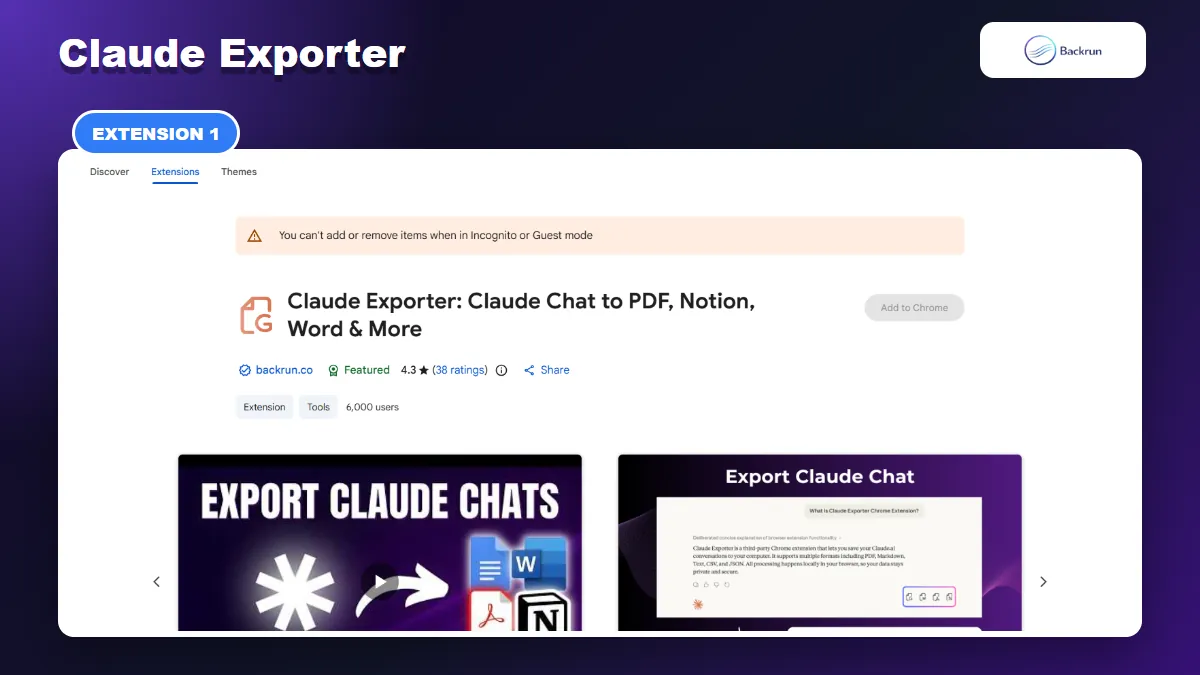
1. Claude Exporter
Claude Exporter sends selected messages or complete Claude conversations to editable document destinations before a Markdown conversion.
Claude Exporter is a Featured Chrome extension from Backrun for moving Claude conversations into PDF, Word, Google Docs, or Notion. It supports selected messages and complete threads, preserves code blocks, tables, Artifacts, and extended thinking, and lets you adjust the font family, font size, and text color before export.
Best for: cleaning a Claude conversation in an editable document before turning it into Markdown, especially when you also need a Word, Google Docs, Notion, or PDF copy.
The Chrome Web Store listing does not currently advertise a direct .md button. Use this workflow when an editable intermediate document is acceptable:
Install Claude Exporter and refresh any Claude tabs that were already open.
Load the conversation you want to archive on claude.ai.
Select the useful messages, or choose the full conversation when the prompts provide essential context.
Choose Notion or Google Docs and complete the export.
Remove unwanted turns and fix any table, code, or heading issues in the editable copy.
Export or convert the cleaned document to Markdown, then inspect the resulting headings, lists, code fences, links, and Artifact references.
Message selection is the main advantage. A long coding or research thread rarely needs every retry, correction, and abandoned prompt. Removing those turns before conversion produces a cleaner Markdown note than converting a raw full-page capture.
During our check, the listing showed a Featured badge, a 4.3 rating from 38 reviews, and 6,000 users. It states that processing happens locally in the browser and no conversation data is stored or sent to external servers. The free allowance listed was 10 full-conversation exports and 15 selected-text exports per month.
Practical limitation: this is a two-stage route to Markdown, not a direct MD download. If Markdown is the only format you need, the next extension is faster.
2. AI Chat Exporter
AI Chat Exporter can save selected Claude messages or the complete conversation directly as Markdown.
AI Chat Exporter is the most direct option when you need a Markdown file and also use ChatGPT, Gemini, or Grok. Its current Chrome Web Store listing supports Markdown alongside PDF, Word, Google Docs, and Notion.
Best for: exporting only the useful parts of a Claude discussion directly to Markdown with one familiar tool across multiple AI platforms.
The basic Markdown workflow is:
Install AI Chat Exporter and refresh any Claude tabs that were already open.
Load the conversation you want to archive on claude.ai.
Select individual messages when the thread contains failed prompts or unrelated detours, or choose the full conversation when the prompts provide essential context.
Choose Markdown as the destination and start the export.
Open the MD file in a real Markdown editor and inspect headings, lists, tables, code fences, equations, links, images, and Artifact references.
Selected-message export is particularly useful for a long Claude thread. Removing repeated prompts and dead ends before export creates a smaller file that is easier to reuse as documentation, an Obsidian note, or context for another model.
The listing showed a 4.7 rating from 39 reviews and 1,000 users during our check. It describes local processing for file exports and support for structured Claude content. Test a representative conversation containing the same tables, code, equations, images, and Artifacts as your real work.
Privacy note: inspect the requested browser permissions and begin with a non-sensitive conversation. Any extension that exports a chat must be able to read content on the supported AI pages.
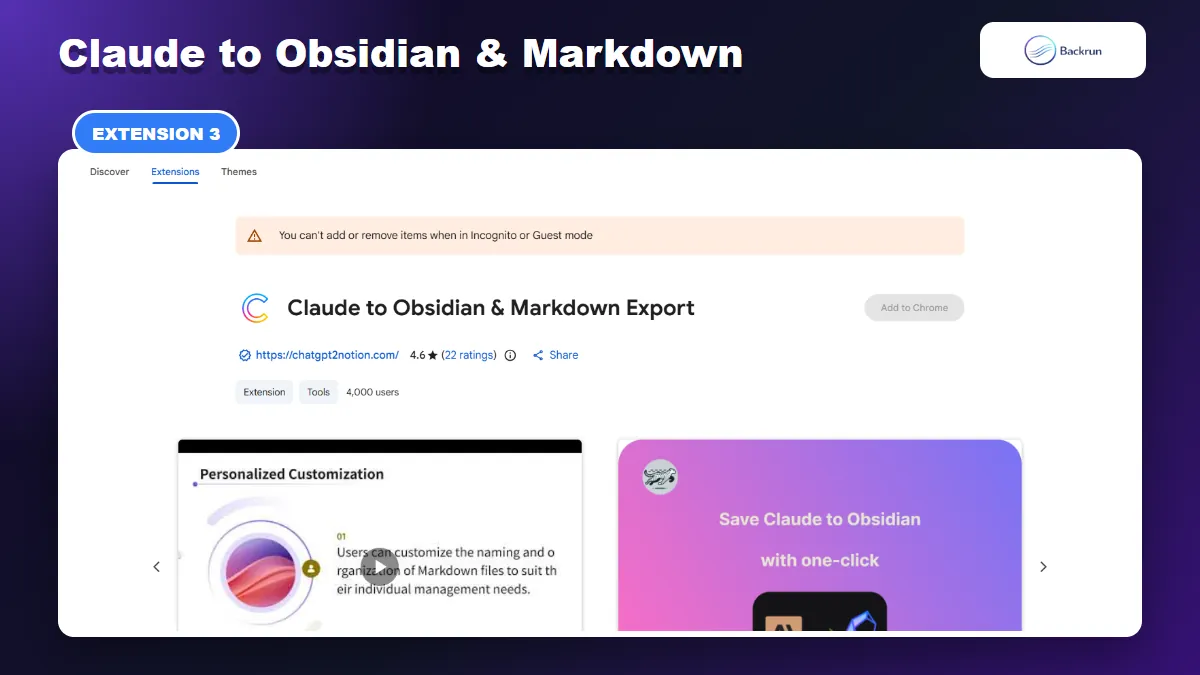
3. Claude to Obsidian & Markdown Export
Claude to Obsidian & Markdown Export creates vault-ready notes with YAML metadata and local asset folders.
Claude to Obsidian & Markdown Export is designed for people who want more than a standalone MD file. It adds YAML front matter, folder controls, local image handling, and filenames that fit a long-term note vault.
Best for: researchers, developers, writers, and students building a searchable Obsidian or local Markdown knowledge base.
The normal workflow is to choose a download folder and filename pattern, open a Claude chat, and click Save. Bulk Save can process multiple conversations. The resulting note may include title, date, message count, Project name, model, tags, and source URL in its YAML properties.
The listing also describes richer local asset handling than most simple exporters:
Conversation images are downloaded and linked from a local images folder.
WebP previews remain usable in compatible Markdown applications.
SVG visualizations can be saved as local files and embedded at the relevant position.
Artifacts and attachments remain available as embedded content or local links when Claude exposes downloadable assets.
Duplicate controls can skip, overwrite, or create a unique filename.
At the time of review, the listing showed a 4.6 rating from 22 reviews and 4,000 users. Its specialization is also its limitation: there are more settings, folders, and asset relationships to verify. Export one representative chat containing an image, code block, table, Artifact, and attachment before starting a bulk archive.
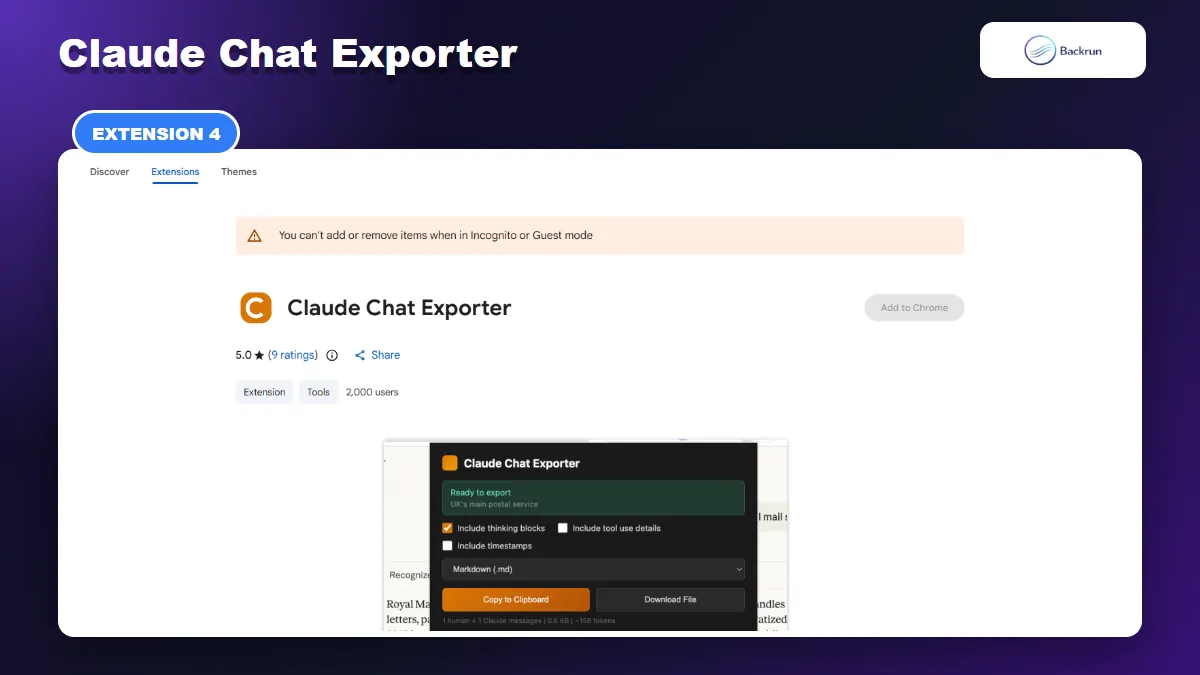
4. Claude Chat Exporter
Claude Chat Exporter can include thinking blocks, tool-use details, and timestamps in a full-chat Markdown file.
Claude Chat Exporter focuses on complete conversation exports with technical detail. Its popup can include extended thinking blocks, tool-use information, and timestamps before creating Markdown, JSON, or plain text.
Best for: developers and technical users who need a readable record of tool calls or want to preserve more diagnostic context from a Claude session.
After opening a Claude conversation, click the extension, enable only the optional details you actually need, select Markdown, and either copy the result or download the file. The preview and estimated file size help catch an unexpectedly large export before saving it.
The listing showed a 5.0 rating from 9 reviews and 2,000 users. It says the extension uses your existing Claude session to fetch the full conversation. That can be convenient, but it also makes session access and compatibility important. Review the extension's permissions, avoid exposing sensitive tool output unnecessarily, and expect Claude interface or API changes to require extension updates.
Practical limitation: this is a full-conversation tool rather than a cleanup editor. Thinking and tool-use details can make Markdown much noisier. Leave those switches off unless the technical trace has lasting value.
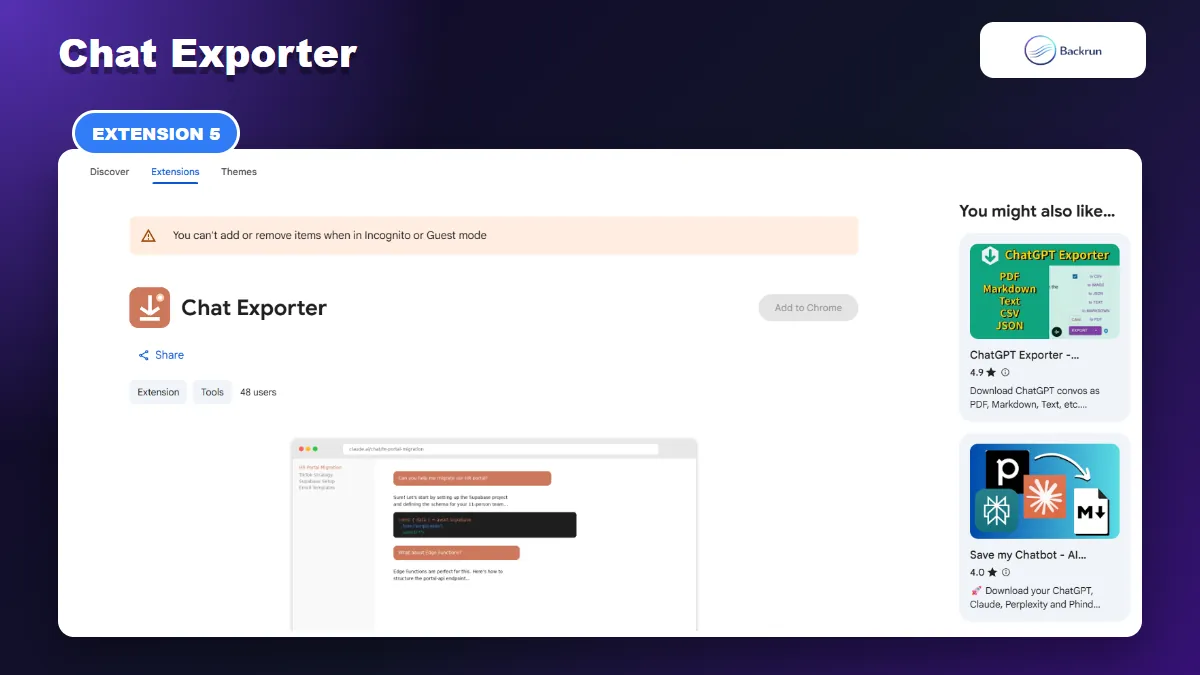
5. Chat Exporter
Chat Exporter adds a one-click button, auto-scrolls long chats, and writes useful front matter into the Markdown file.
Chat Exporter is a lightweight Markdown-only option for Claude, ChatGPT, Gemini, Grok, and Perplexity. It places a floating export button on supported pages and automatically scrolls the conversation before creating the file.
Best for: users who want the fastest full-chat Markdown export with predictable filenames and front matter.
The generated file includes basic metadata such as title, date, source URL, and message count. The listing says its Claude export can also retain thinking blocks, Artifacts, web citations, and file attachments. Per-platform toggles let you exclude content that does not belong in the final note.
The extension advertises offline processing, no network calls, and local settings. It had 48 users and no public rating during our review, so the public usage sample remains small. Test long lazy-loaded conversations carefully: compare the first and last messages, count important code blocks, and verify that Artifact and attachment references lead somewhere useful.
Practical limitation: the simplicity comes from exporting the entire conversation. There is no comparable message-selection interface or full library browser in the listing, so you may need to edit the MD file afterward.
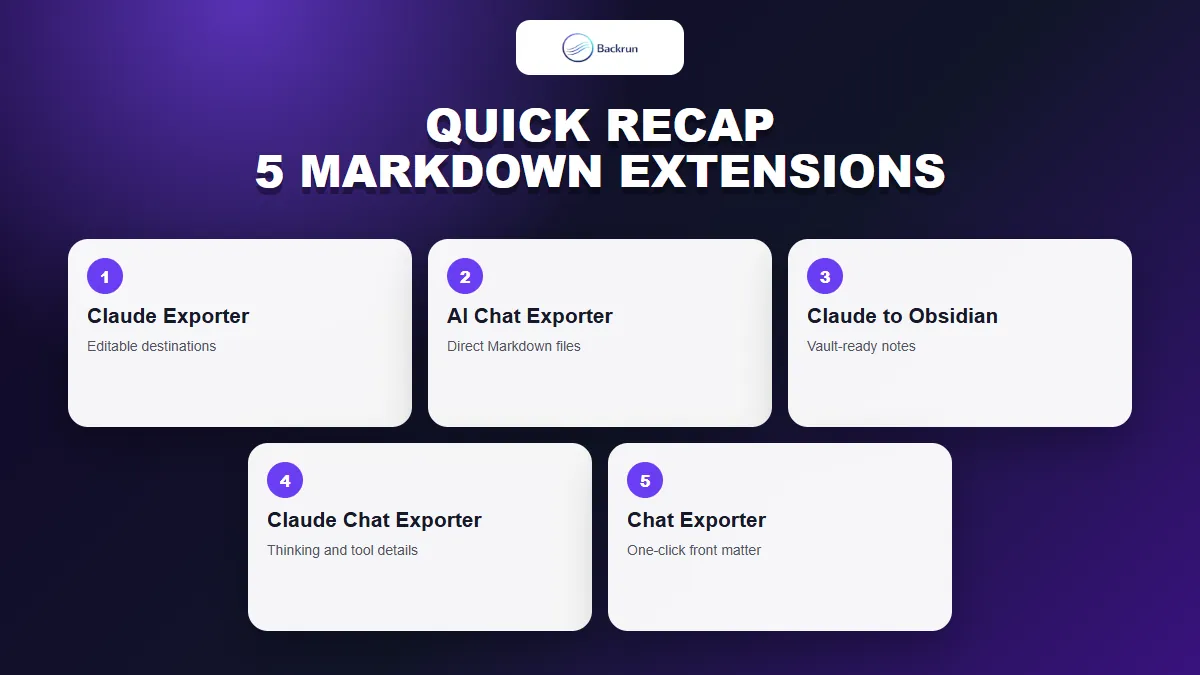
Quick Recap
Choose a Claude Markdown exporter by selection controls, archive size, Artifact handling, metadata, and the amount of technical detail you need.
Extension
Best fit
Standout feature
Main caution
Claude Exporter
Editable intermediate workflow
Selected or full chats to Word, Docs, Notion, and PDF
No direct Markdown button in the current listing
AI Chat Exporter
Direct selective Markdown exports
Selected messages plus several destination formats
Verify complex Artifacts and rich content
Claude to Obsidian & Markdown
Local knowledge bases
YAML, folders, images, SVGs, and duplicate controls
More settings and asset paths to inspect
Claude Chat Exporter
Technical traces
Optional thinking blocks, tool details, and timestamps
Full exports can become noisy
Chat Exporter
Fast full-chat files
One-click auto-scroll and front matter
Small public usage sample and no selective export
Choose Claude Exporter when you want to clean the conversation in Word, Google Docs, or Notion before conversion. AI Chat Exporter is the easier direct Claude to Markdown extension; use Claude to Obsidian for a maintained vault, Claude Chat Exporter for tool traces, or Chat Exporter for a simple full-thread file.
Whatever you install, follow Google's advice for managing Chrome extensions, test with non-sensitive content, and compare the exported Markdown with Claude before deleting or reorganizing the original chat. For non-roundup workflows, see our practical guide to exporting Claude chats to Markdown.