4 Ways to Copy Equations from Claude to Word Without Breaking Formatting
September 24, 20266 min read
Equations that look correct in Claude can turn into raw LaTeX, broken fractions, or flattened text after a normal paste. The right workflow depends on whether you need the surrounding explanation, an editable equation, a finished document, or only an accurate visual.
This guide explains four practical ways to copy equation from Claude to Word while keeping the notation readable and checking the parts that commonly fail.
1. Use Claude Exporter for a Full Answer or Conversation
Claude Exporter is useful when the equations belong to a longer explanation or complete Claude conversation.
Claude Exporter is the most convenient starting point when you need the prompts, explanation, lists, tables, and formulas together. It avoids copying each message separately and can export only the useful messages or the full thread.
Follow these steps to export the conversation.
Install Claude Exporter from the Chrome Web Store and review its current permissions.
Open Claude and load the conversation that contains the equations.
Select the relevant messages, or choose the full conversation when earlier prompts define variables, assumptions, or notation.
Choose Word as the output format and start the export.
Open the DOCX in desktop Word and compare every equation with the original Claude response.
Repair any formula that is not editable with the Word Equation method below.
Best for: worked solutions, research notes, technical explanations, and chats where the surrounding context matters.
Advantage: it preserves more of the conversation structure than a browser copy-and-paste operation.
Limitation: an exported formula may arrive as formatted text or a visual object instead of a native Word equation. Always test one complex response before exporting a long thread, and avoid sending confidential material through tools you have not reviewed.
2. Paste Word-Compatible LaTeX Into Word Equation
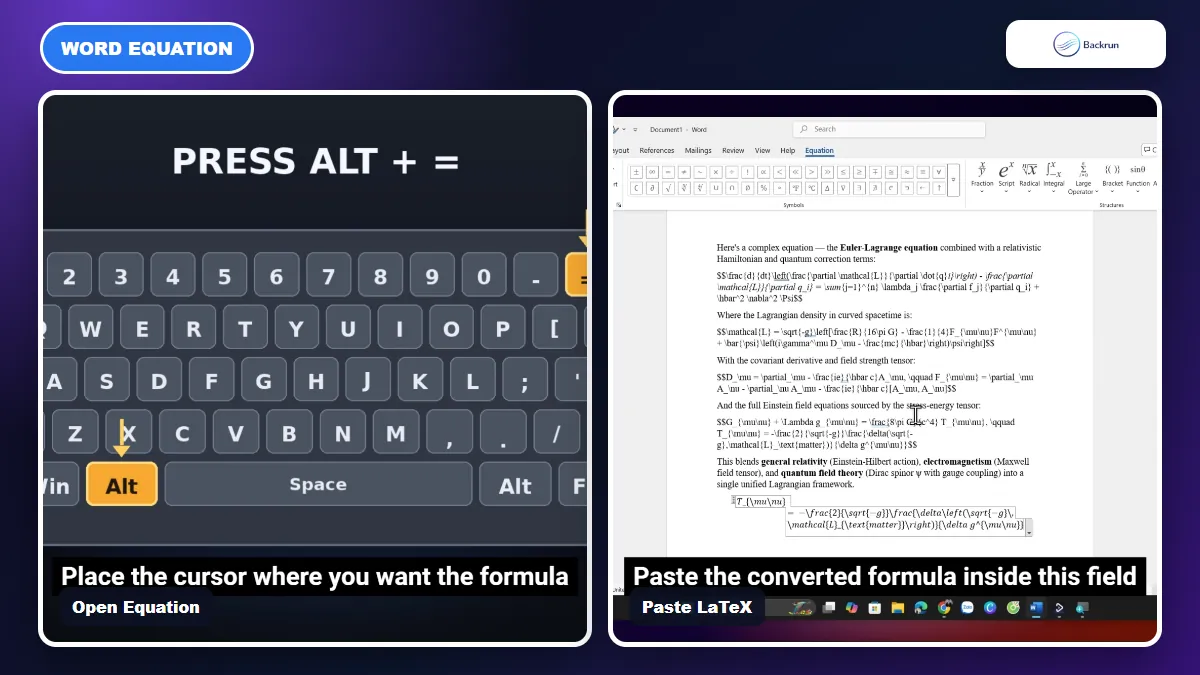
Press Alt plus equals in desktop Word, then paste Word-compatible LaTeX into the equation field.
This is the most reliable method when the formula must remain editable. Instead of copying the rendered equation, ask Claude for a linear LaTeX version that Word can interpret.
Use the following workflow for one equation or a small group of formulas.
Ask Claude for Word-compatible LaTeX. A useful prompt is: Convert this equation to Microsoft Word-compatible LaTeX. Return only the equation, without dollar signs or a code fence.
Open desktop Word and place the cursor where the equation belongs.
Press Alt + = on Windows, or choose Insert > Equation from the ribbon.
Choose LaTeX input in the Equation tab if Word is using UnicodeMath.
Paste the linear expression inside the equation field. Remove surrounding $ or $$ delimiters first.
Convert it to Professional format from the Equation ribbon, or use Ctrl + = while the equation is selected.
Check the result character by character, especially matrices, aligned expressions, subscripts, superscripts, limits, and uncommon symbols.
Microsoft's official guide confirms that Word supports both UnicodeMath and LaTeX linear input, but its LaTeX syntax is not identical to every external LaTeX system. For example, some matrix environments must be rewritten with Word-supported structures such as \matrix{}.
Best for: academic papers, assignments, and technical documents where equations need later editing.
Advantage: the result is a native Word equation rather than an image.
Limitation: unsupported packages and environments may not convert. Simplify the expression or ask Claude to rewrite it specifically for Word instead of pasting a full LaTeX document.
If Word leaves the formula in linear form: click inside the equation box, confirm that the input mode is LaTeX, and use Convert > Professional again. When only one section fails, send that expression back to Claude and ask for a simpler Word-compatible version rather than regenerating the whole document.
Important: use the desktop version of Word. Microsoft's support page states that Word for the web can display equations but cannot create or edit them.
3. Ask Claude to Create a DOCX With the Equations
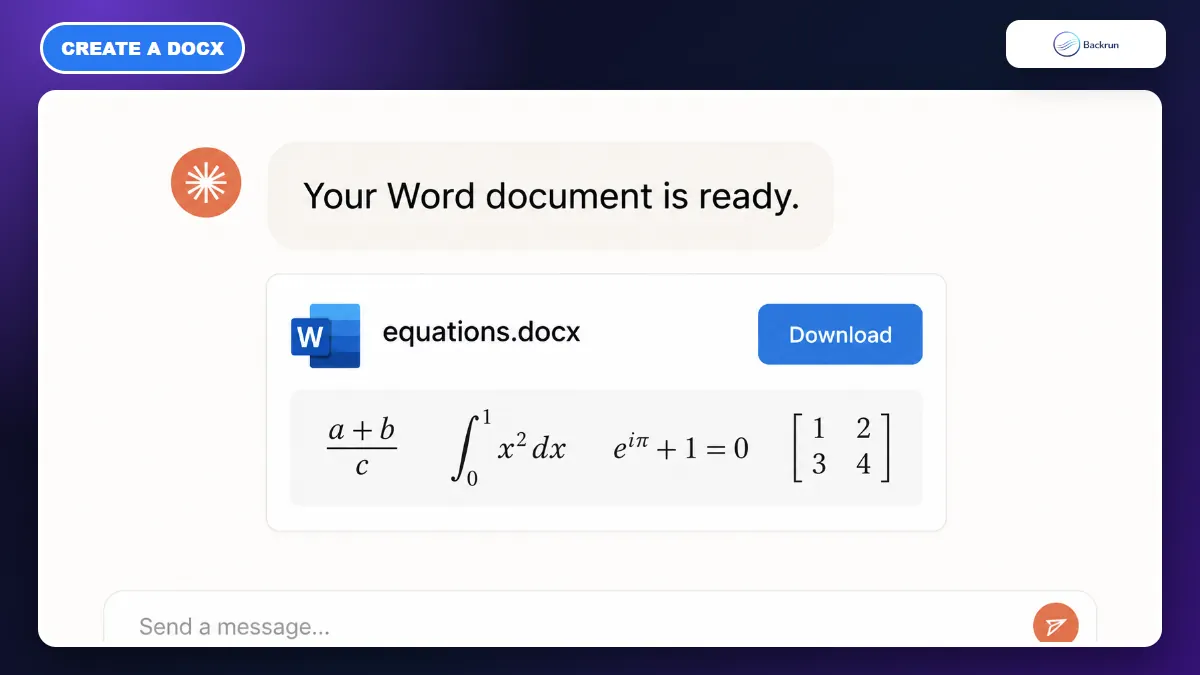
If file creation is available, Claude can prepare a DOCX that you download and review in Word.
If your Claude account can create downloadable files, you can ask it to assemble a Word document instead of transferring each equation manually. This is useful for a polished deliverable, but it should not be treated as a guaranteed feature on every account or plan.
Here is a practical prompt-to-file workflow.
Describe the document clearly, including the title, section order, explanatory text, and equations that must appear.
Ask for an editable DOCX and request that all formulas use Word equation objects where possible.
Tell Claude not to place formulas in screenshots unless a native equation cannot represent the layout.
Download the generated file from the file card when it appears.
Open it in desktop Word and click several equations to confirm they are editable.
Compare every formula with the source before submitting or sharing the document.
Best for: a report, worksheet, or study document that combines equations with headings and explanatory paragraphs.
Advantage: Claude can organize the whole document, reducing repetitive formatting work.
Limitation: file creation availability varies, and a DOCX can still contain equations as plain text or images. If the file card does not appear, use Claude Exporter or rebuild the critical formulas with Method 2.
4. Use a Screenshot When the Equation Only Needs to Look Correct
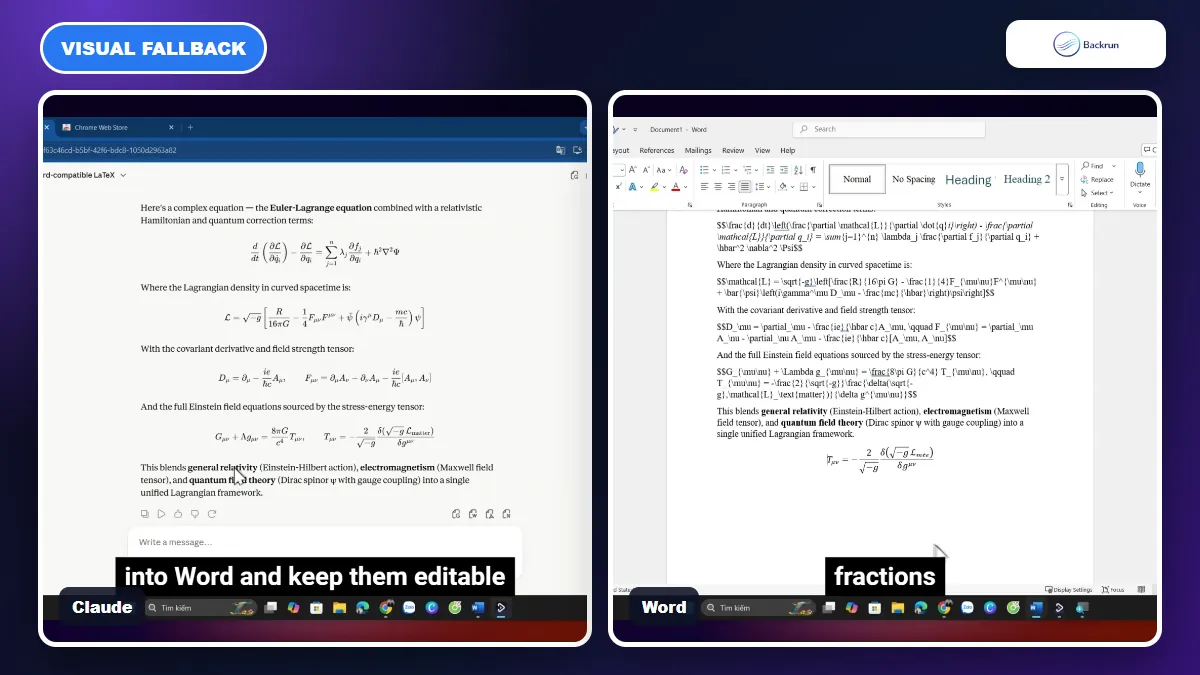
A screenshot preserves the appearance, but the equation is not editable or searchable as mathematical notation.
A screenshot is the safest visual fallback when the equation has a complex layout and you only need it to look correct. It is suitable for a handout, presentation, or reference note, but not for a document where the formula must be edited later.
Use the steps below to keep the image sharp.
Zoom the Claude page until the formula is large and easy to read.
Capture only the equation with Windows Snipping Tool or another trusted screenshot utility.
Save the crop as PNG so thin mathematical strokes stay crisp.
Insert the image in Word with Insert > Pictures, then resize it from a corner.
Add alt text or a text description when the document must be accessible.
Keep the original LaTeX nearby so the formula can be rebuilt if editing becomes necessary.
Best for: fixed visual output, unusually complex notation, or a quick reference that will not be edited.
Advantage: the equation looks the same as it does in Claude and does not depend on Word's LaTeX compatibility.
Limitation: the equation cannot be searched or edited, and it may become blurry when enlarged. Do not use screenshots for a thesis, reusable template, or accessibility-sensitive document unless there is no better option.
Quick Recap
Choose the method according to how much context you need and whether the final equation must remain editable.
Method
Best for
Editable?
Main caution
Claude Exporter
A full answer or conversation
Depends on the exported formula
Test complex equations first
Word Equation
A few important formulas
Yes
Word supports only part of LaTeX syntax
Claude-created DOCX
A prepared report or worksheet
Verify in Word
File creation availability varies
Screenshot
Fixed visual accuracy
No
Weak accessibility and scalability
Start with Claude Exporter when the surrounding conversation matters. Use Word Equation for formulas that must remain editable, ask Claude for a DOCX when you need a complete document, and choose a screenshot only when visual fidelity matters more than editing.