5 ChatGPT to Word Extensions Compared for Clean DOCX Exports
October 31, 20268 min read
Copying a long ChatGPT conversation into Microsoft Word often breaks tables, code blocks, equations, images, and heading styles. A reliable ChatGPT to Word extension avoids that cleanup by turning the conversation into an editable DOCX file.
We compared five current Chrome Web Store listings on October 31, 2026. Every tool below explicitly supports Word export, but they differ in message selection, Deep Research support, privacy model, document controls, and the number of AI platforms they cover.
1. ChatGPT Exporter
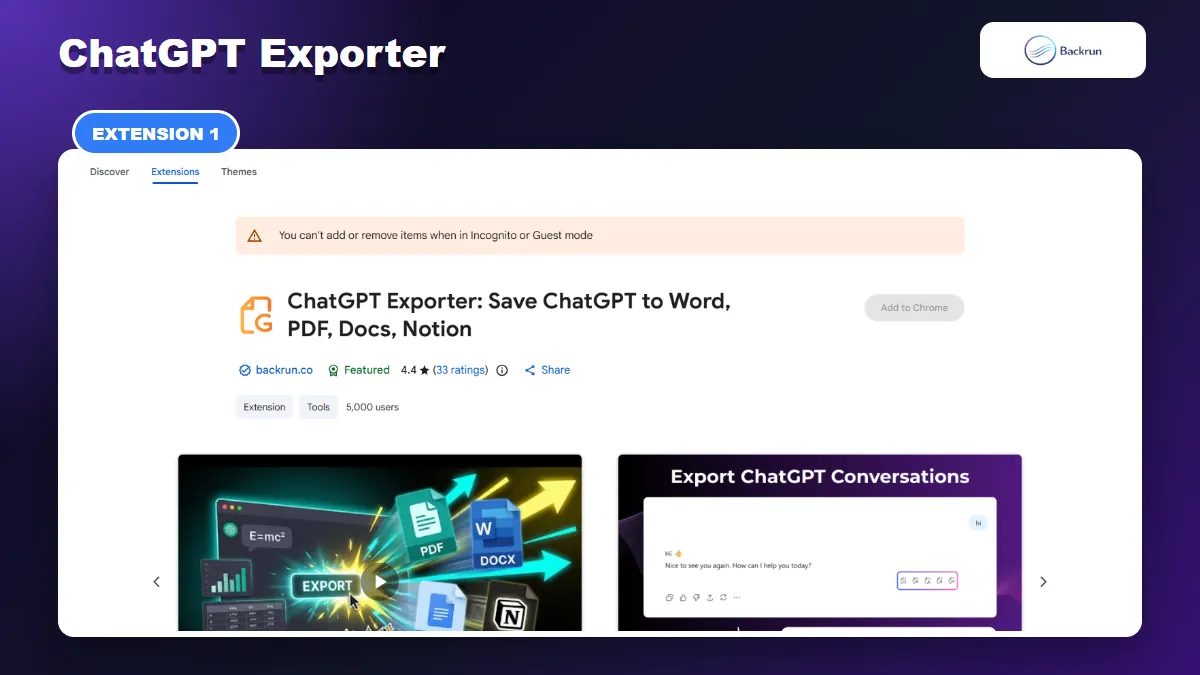
ChatGPT Exporter supports selected passages or complete conversations and lets you customize typography before creating a Word file.
ChatGPT Exporter is a focused choice for people who want an editable Word document without exporting every turn in a long thread. Its current Chrome Web Store listing supports Word, PDF, Google Docs, and Notion, with controls for font family, font size, and text color.
Best for: exporting selected answers, cleaning long conversations before download, and keeping the same workflow when Word is not the only destination you use.
The normal Word workflow is:
Install ChatGPT Exporter and refresh any ChatGPT tab that was already open.
Load the conversation you want to turn into a document.
Select a useful passage, or choose the complete thread when the prompts are important context.
Adjust the typography when the document needs a specific font, size, or text color.
Choose Word and export the DOCX file.
Open the result in Word and verify headings, tables, equations, images, code indentation, and links.
The strongest feature is scope control. A research chat may contain failed prompts, duplicate answers, and corrections that should not appear in the final report. Selecting only the useful sections creates a shorter DOCX that needs less editing.
During our check, the listing showed a Featured badge, a 4.4 rating from 33 reviews, and 5,000 users. It says Word files are generated locally in the browser and conversation data is not sent to an external server. That is useful for ordinary work, but you should still review Chrome permissions and begin with a non-sensitive conversation.
Practical limitation: the free allowance can change between versions. Confirm the current quota on the listing before building a repetitive team workflow around it.
2. ChatGPT to Word or PDF
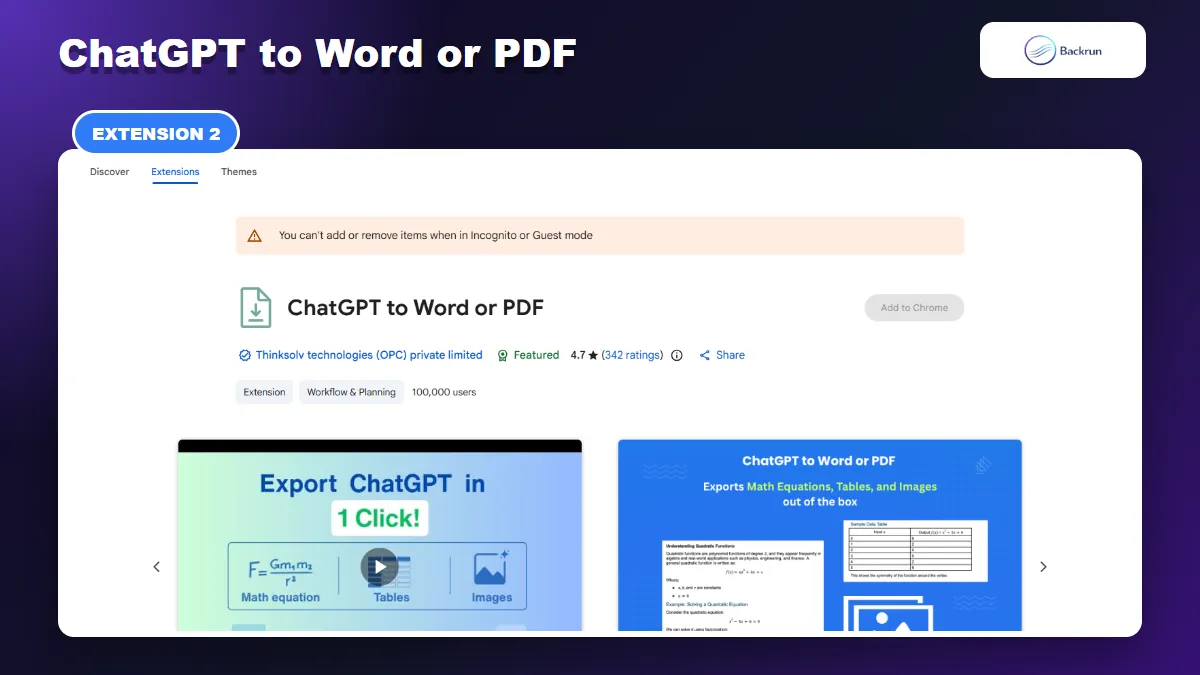
ChatGPT to Word or PDF emphasizes one-click DOCX export for equations, tables, images, Canvas content, and Deep Research documents.
ChatGPT to Word or PDF has the largest focused user base in this comparison. It exports one response, selected messages, the full conversation, or assistant responses without user prompts.
Best for: people who primarily need Word or PDF and regularly export ChatGPT Deep Research, Canvas content, tables, math, images, or code.
The extension supports several useful export scopes:
Single response when only one answer belongs in the document.
Selected messages for a curated report or study note.
Complete conversation when prompt history matters.
Responses only when the Word file should read like a finished document rather than a transcript.
Its listing specifically mentions ChatGPT Canvas and Deep Research documents, which makes it relevant for long structured outputs. It also claims preservation of tables, mathematical equations, inline code, code blocks, images, and rich text. Those are exactly the elements most likely to fail during normal browser copy-paste.
At the time of review, the listing showed a Featured badge, a 4.7 rating from 342 reviews, and 100,000 users. That is a stronger public usage sample than most alternatives here.
Privacy and pricing note: the listing discloses handling of personally identifiable information, location, and website content, and it offers in-app purchases. Read the current privacy policy and test the free workflow with non-sensitive content before exporting client or company conversations.
3. AI Exporter
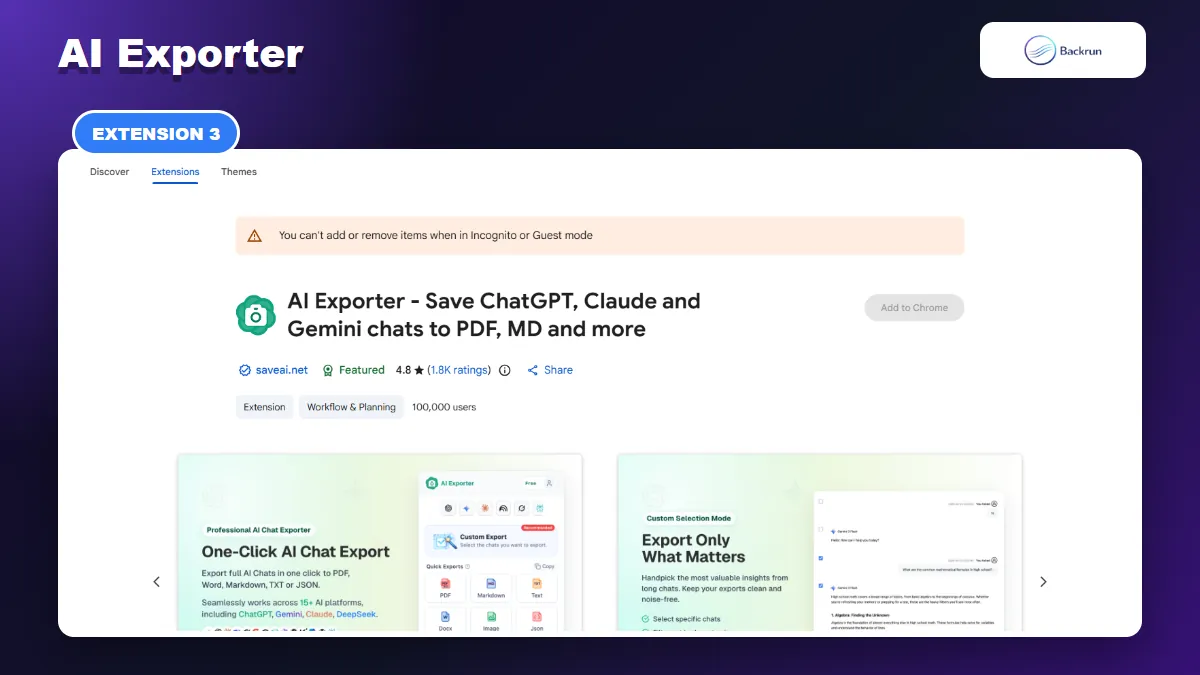
AI Exporter is designed for users who archive conversations from ChatGPT and many other AI platforms in Word and additional formats.
AI Exporter is the broadest cross-platform option in this list. Its listing supports ChatGPT, Claude, Gemini, NotebookLM, Grok, Perplexity, and other AI services, with Word, PDF, Markdown, JSON, text, image, and Notion workflows.
Best for: people who use several AI assistants and want one archive tool instead of a separate Word exporter for every platform.
For ChatGPT-to-Word work, its most relevant capabilities are:
Checkbox selection to remove unneeded message bubbles before export.
Long-conversation handling for research and technical threads.
Rich-content parsing for LaTeX, syntax-highlighted code, tables, and mixed image-and-text layouts.
Deep Research support for structured ChatGPT reports.
Cross-platform archiving when the same project spans several AI tools.
The listing showed a Featured badge, a 4.8 rating from roughly 1,800 reviews, and 100,000 users during our check. It also records conversation time and model information in exported files, which can help when the Word document is used as project evidence.
Practical limitation: this is a larger extension with a broader feature set than a dedicated ChatGPT-to-Word tool. Review its permissions, account requirements, and current pricing for the formats you need. A broad platform list is valuable only if you actually use those platforms.
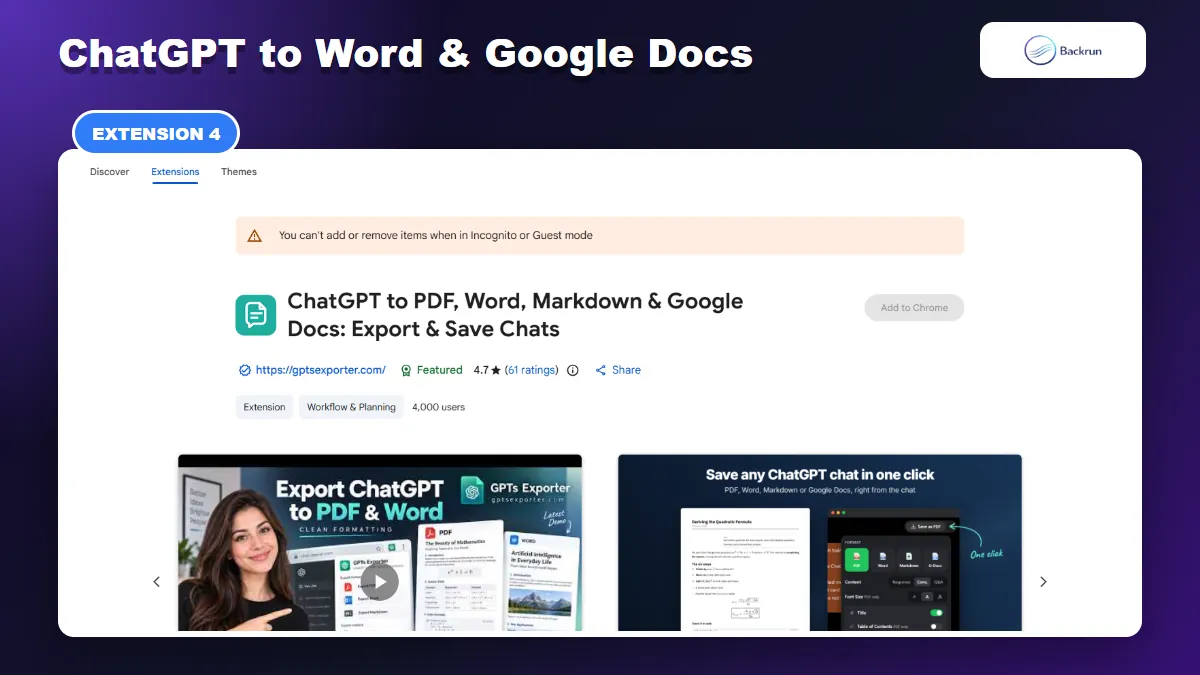
4. ChatGPT to PDF, Word, Markdown & Google Docs
GPTS Exporter combines Word output with Google Docs, Google Drive, Markdown, message selection, and long-chat controls.
ChatGPT to PDF, Word, Markdown & Google Docs is useful when Word is part of a Google Drive-centered workflow. It can download DOCX locally or send supported exports to Google Drive and Google Docs.
Best for: users who alternate between Microsoft Word and Google Docs, or who need a table of contents and message-selection controls for long conversations.
The extension lets you export the full chat, assistant answers only, a question-and-answer structure, or individually selected messages. Its listing also mentions ChatGPT shared chats and temporary chats, plus formatting support for code, tables, LaTeX equations, and images.
During our review, the listing showed a Featured badge, a 4.7 rating from 61 reviews, and 4,000 users. The free plan described on the listing included a limited number of weekly exports, unlimited Markdown, and Google Docs or Drive access with a Google login; paid features included additional Word and PDF options such as themes.
Privacy note: the listing says chat content is sent over HTTPS for file processing and deleted after generation. That differs from extensions that generate Word entirely inside the browser. Decide whether that processing model is acceptable before exporting confidential conversations.
Practical limitation: some of its value comes from Google Drive integration. If you only need local DOCX files and never use Drive, a narrower extension may involve fewer steps.
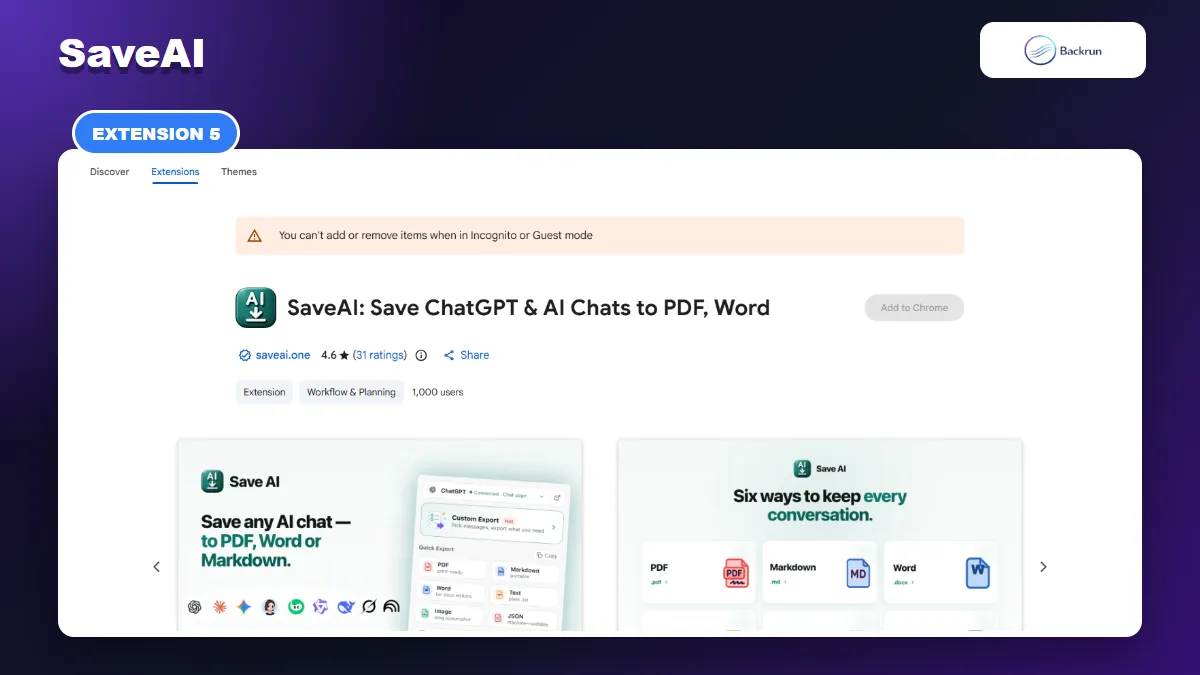
5. SaveAI
SaveAI combines Word export with a local chat archive, custom message selection, themes, and support for 20 AI sites.
SaveAI treats export as part of a broader local archive. It supports 20 AI chat sites and offers Word, PDF, Markdown, text, JSON, and long-image output alongside a searchable side panel.
Best for: users who want to capture chats regularly, search previous captures, and create Word files from several AI platforms.
You can export a whole conversation from the popup, use a button beside an individual AI reply, or open a preview editor and tick the exact messages to keep. Reading themes, width controls, font settings, filename patterns, and a configurable cache make it more of a personal archive manager than a simple download button.
The listing showed a 4.6 rating from 31 reviews and 1,000 users. It says Word and other non-PDF formats are generated locally, while captured chats may remain in browser storage for a retention period you control. PDF uses a server renderer by default, although a local PDF option is available.
Practical limitation: local caching is convenient but creates another copy of the conversation on the device. Set an appropriate retention period, clear old captures, and avoid storing sensitive chats on a shared browser profile.
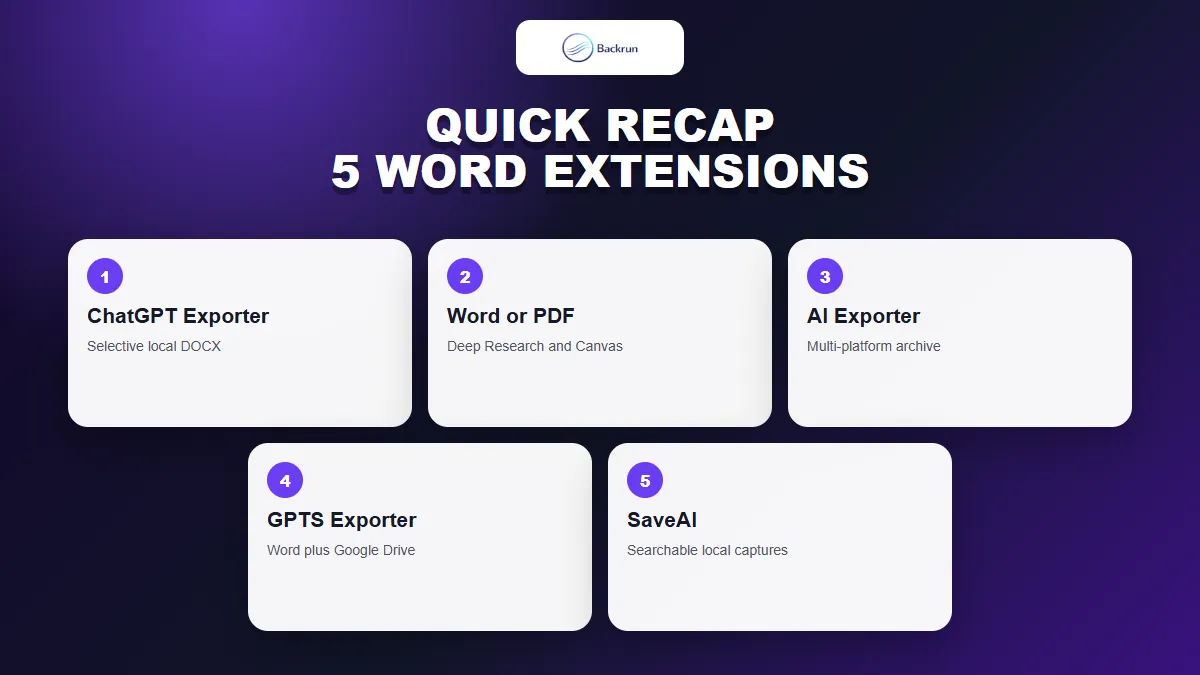
Quick Recap
Choose a ChatGPT Word exporter by scope controls, formatting needs, privacy model, platform coverage, and where the DOCX file will be edited.
Extension
Best fit
Standout feature
Main caution
ChatGPT Exporter
Selective everyday exports
Typography controls and local Word generation
Check the current free quota
ChatGPT to Word or PDF
Deep Research and Canvas
Large user base and focused Word/PDF workflow
Review disclosed data handling and paid features
AI Exporter
Multi-platform archiving
Long chats, rich content, and many AI sites
Broader permissions and feature complexity
GPTS Exporter
Word plus Google Drive
Drive, Google Docs, selection, and TOC controls
File processing uses an external service
SaveAI
Searchable personal archive
Local cache, themes, and 20 supported AI sites
Manage browser retention on shared devices
For a focused ChatGPT to Word extension, start with ChatGPT Exporter when you need selective local exports, or ChatGPT to Word or PDF when Deep Research and Canvas support matter most. AI Exporter and SaveAI are better for multi-platform archives, while GPTS Exporter fits a Word-and-Google-Drive workflow.
Whichever tool you choose, test one representative conversation before exporting a large archive. Check equations, tables, code, images, links, page breaks, and Word heading styles, and follow Google's guidance for managing Chrome extensions. For non-extension workflows, see Backrun's guide to copying ChatGPT text into Word without breaking formatting.