5 Best ChatGPT to Markdown Extension in 2026 (Compared)
November 02, 20268 min read
Copying a long ChatGPT conversation into a Markdown editor often leaves broken code fences, flattened tables, missing links, and extra interface text. A reliable ChatGPT to Markdown extension converts the conversation into a reusable .md file instead of forcing you to rebuild the structure by hand.
We reviewed five current Chrome Web Store extensions on November 2, 2026. Every option below supports ChatGPT and direct Markdown export, but the best choice depends on whether you need selected messages, one-click downloads, media files, or batch backups.
1. ChatGPT Exporter
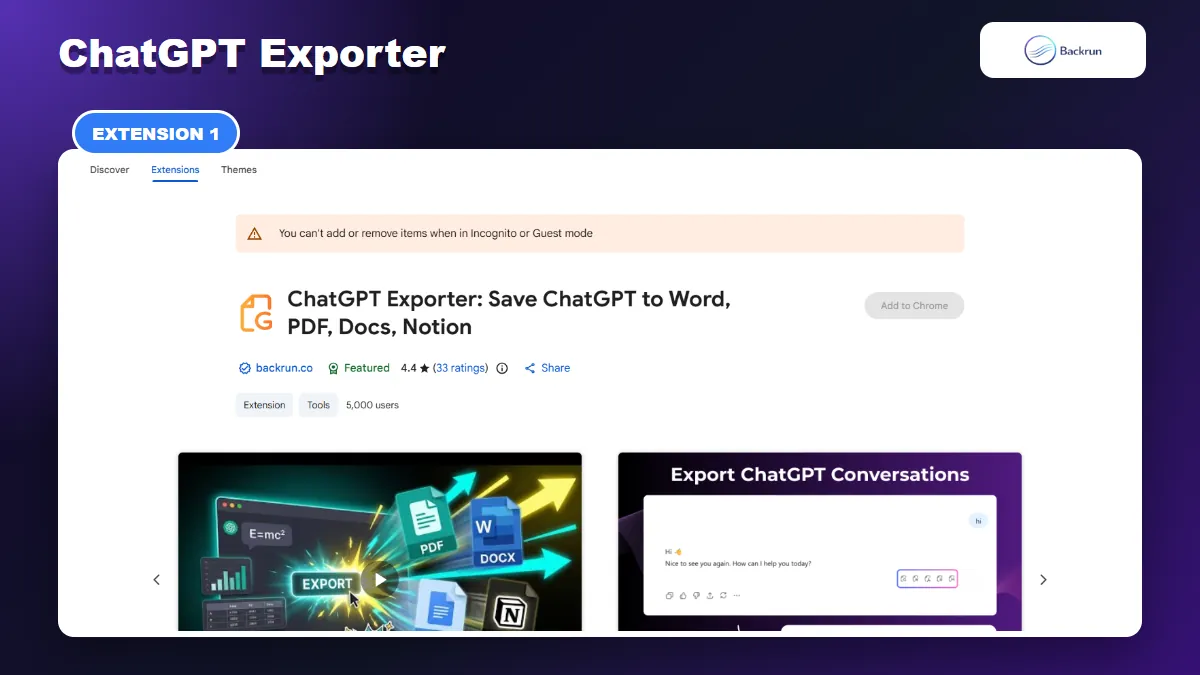
ChatGPT Exporter can save selected messages or a complete ChatGPT conversation directly as Markdown.
ChatGPT Exporter is a focused option for turning a ChatGPT conversation into a clean Markdown file without manually copying each response. It can export selected messages or the complete thread, making it easier to remove drafts and keep only the useful context.
Best for: direct Markdown exports where you want control over which ChatGPT messages appear in the final file.
The direct Markdown workflow is:
Install ChatGPT Exporter and refresh any ChatGPT tab that was already open.
Open ChatGPT and load the conversation you want to keep.
Select the useful messages, or keep the complete conversation when the prompts provide necessary context.
Choose Markdown from the available export formats.
Click Export to download the .md file.
Open the file in your Markdown editor and verify tables, code blocks, links, equations, and images.
Selection is the main advantage. Long ChatGPT threads often contain failed prompts, duplicate drafts, and corrections that should not appear in final documentation. Removing them before export produces a cleaner Markdown file for Obsidian, GitHub, static-site generators, or an internal knowledge base.
ChatGPT Exporter is designed to preserve structured content such as headings, numbered and bulleted lists, code blocks, tables, links, images, and mathematical notation. During our check, its listing showed a Featured badge, a 4.4 rating from 33 reviews, and 5,000 users.
Practical limitation: complex conversations can render differently across Markdown editors. Test a thread containing tables, nested lists, code, and formulas before exporting a large archive.
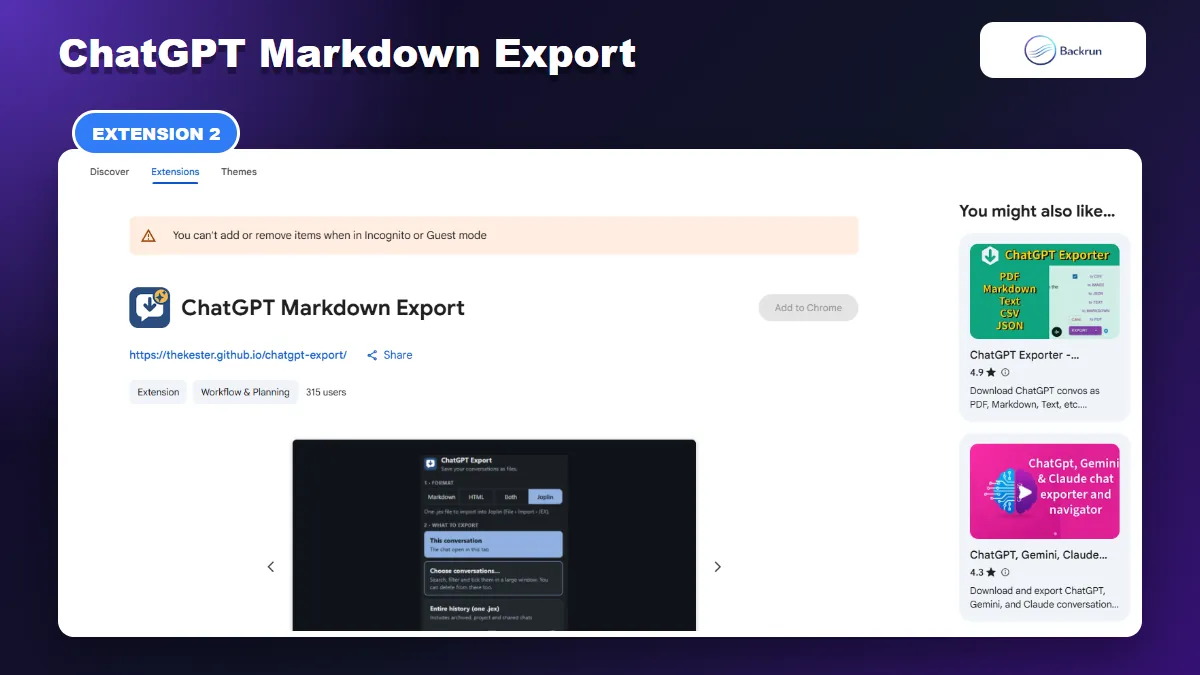
ChatGPT Markdown Export is designed for more than downloading the chat currently open in your browser. It can export the current conversation, recent chats, or selected conversations found through search and filters.
Best for: structured backups that need Markdown plus images, attachments, generated files, sources, or metadata.
Its format choices include Markdown, HTML, both formats together, and JEX for Joplin. That makes it useful when the same ChatGPT archive must remain readable as plain files while also moving into a note-taking application. The listing says full-history JEX exports create one note per conversation.
A typical Markdown workflow is:
Choose this conversation for a single open thread.
Use search and filters when you need a defined group of conversations.
Select Markdown, or Markdown plus HTML when a visual fallback is useful.
Include available media and sources only when the extra files are needed.
Review the diagnostic log if a conversation fails to export.
The extension had 315 users during our review and was updated on October 11, 2026. Its listing says exports and settings are processed locally, although downloading media hosted outside ChatGPT requires an optional permission.
Practical limitation: ChatGPT's internal interfaces can change, and some media may no longer be available. For important archives, open a sample of exported files and confirm that referenced images and attachments were actually downloaded.
3. ChatGPT Power Exporter
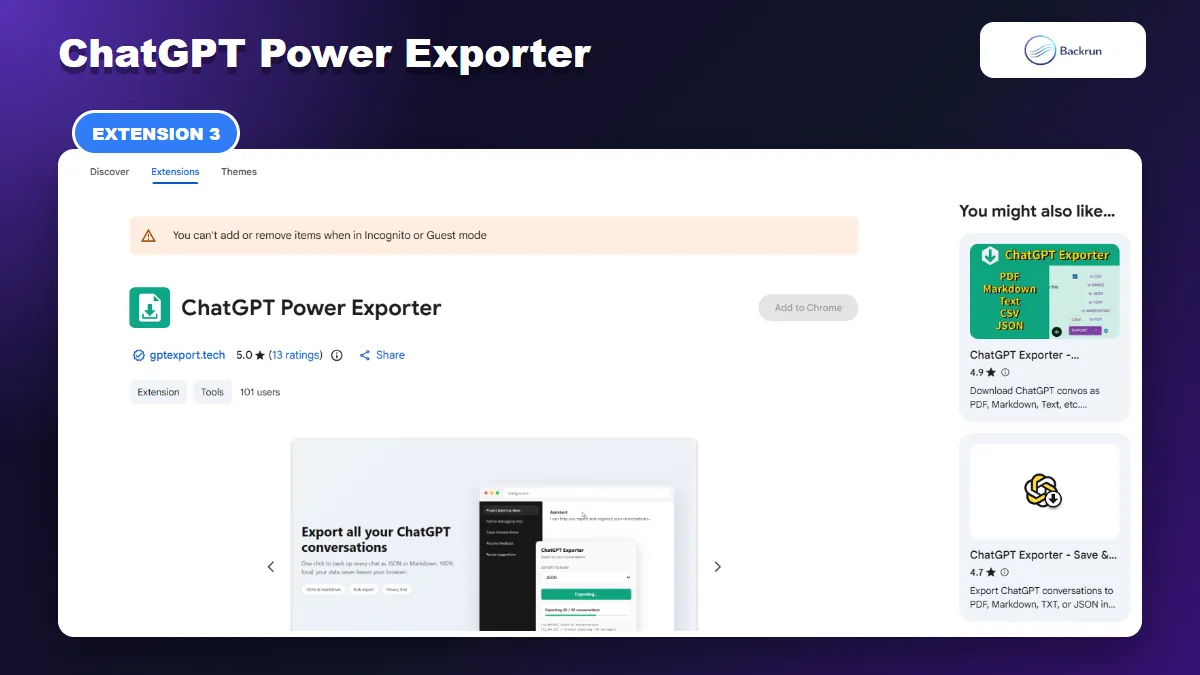
ChatGPT Power Exporter is built around exporting several conversations in one run rather than saving only the open chat.
ChatGPT Power Exporter focuses on bulk exports from the conversation list in your signed-in ChatGPT session. You can export everything or select specific chats, then save the result as Markdown, HTML, or JSON.
Best for: periodically backing up several ChatGPT conversations to a local Markdown archive.
The extension reads complete threads in their original order and shows progress while it works. Markdown is useful for human-readable archives, while JSON provides a structured fallback for scripts or later migrations. The listing says the export runs in the browser and conversation content is not uploaded to the developer's servers.
For a dependable batch export:
Sign in to ChatGPT and keep the ChatGPT tab open.
Open the extension and load the available conversation list.
Select Markdown and choose all chats or a smaller group.
Keep both the tab and popup open until the progress indicator finishes.
Inspect several files, including one long thread and one conversation with code or tables.
At review time, the listing showed a 5.0 rating from 13 reviews and 101 users. The free plan described on the listing allowed up to five conversations in total; unlimited exports required a paid lifetime license. Pricing and quotas are time-sensitive, so confirm them before installation.
Practical limitation: this is better for archive jobs than quick single-answer exports. If you only need two selected messages from one long thread, a message-level selector is faster and produces less cleanup.
4. Export AI Chats
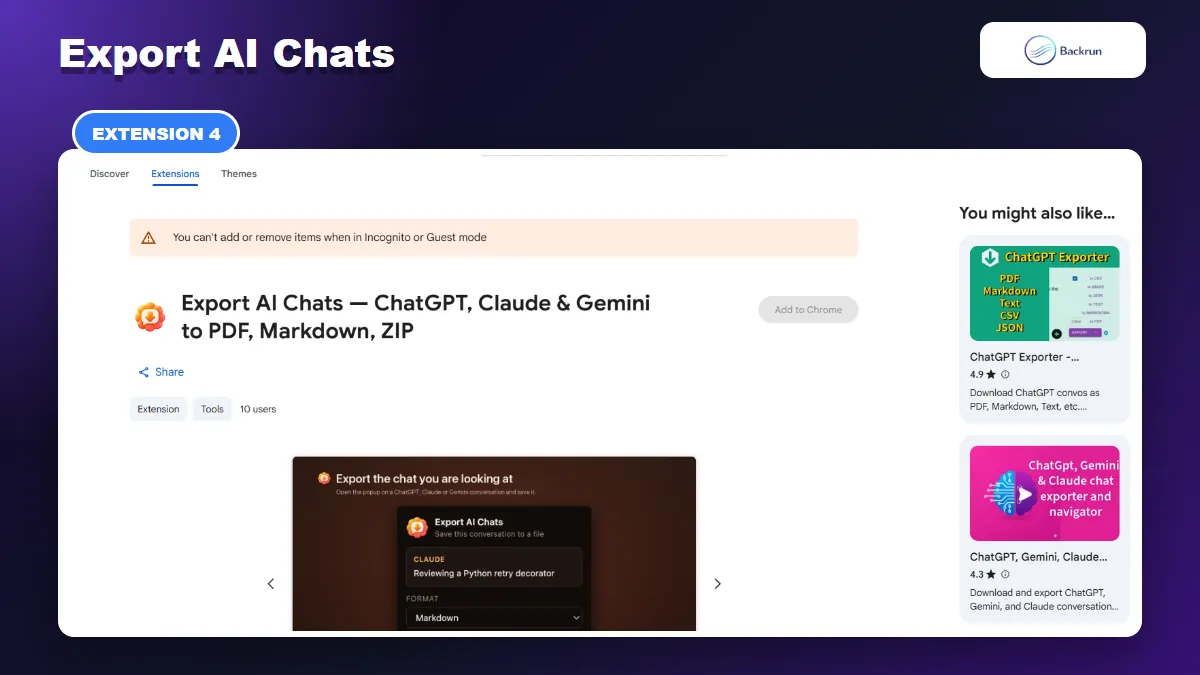
Export AI Chats includes a Markdown preview and emphasizes structural handling for code, tables, lists, and mathematics.
Export AI Chats supports ChatGPT, Claude, and Gemini, and can save one conversation or several captured chats as Markdown, HTML, plain text, JSON, PDF, or a ZIP archive.
Best for: technical conversations where valid Markdown structure matters more than decorative document styling.
Its listing gives unusually specific formatting details. Code blocks retain language tags, tables escape pipe characters inside cells, nested lists keep their hierarchy, and equations use original TeX where the page exposes it. A preview pane lets you inspect the output before saving.
The recommended process is:
Scroll a long conversation to the top so ChatGPT loads earlier messages into the page.
Open the extension and select Markdown.
Preview the result and check message count, code fences, tables, and mathematical expressions.
Export one chat, or capture several conversations before creating a ZIP.
The listing says the extension makes no network requests and contains no analytics, account system, or tracking. It had 10 users and no public rating during our review, so the detailed technical description is stronger evidence than its adoption numbers.
Practical limitation: the extension can only read messages currently loaded in the page. It reports missing messages rather than silently returning a partial export, but users still need to load long threads correctly before saving.
5. ChatGPT to Markdown
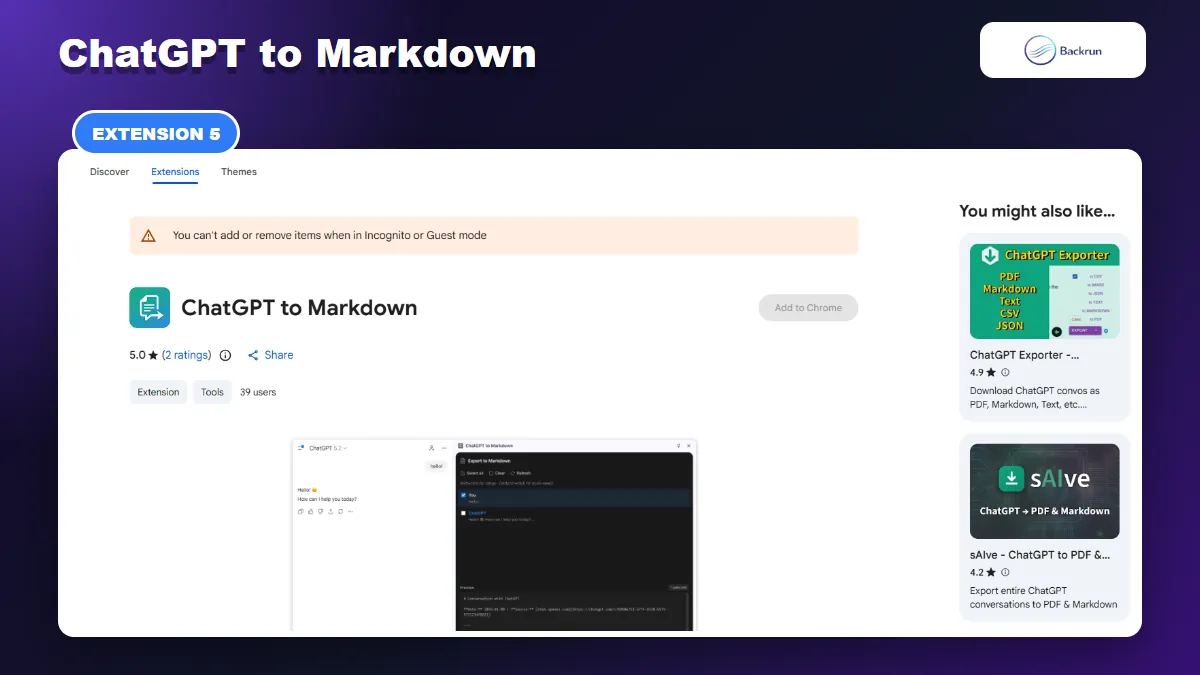
ChatGPT to Markdown provides a focused selector, filters, live preview, clipboard copy, and Markdown download.
ChatGPT to Markdown is the narrowest tool in this comparison. It focuses on choosing messages from the current conversation, previewing the Markdown, and copying or downloading the result.
Best for: quickly moving a few relevant ChatGPT messages into Obsidian, Notion, GitHub, or another Markdown-compatible workspace.
The built-in search and user-versus-assistant filters help reduce long threads before export. A live preview shows the resulting Markdown, so you can catch unwanted messages or malformed structure before it reaches the clipboard.
The workflow is short:
Open the target ChatGPT conversation.
Launch the extension and select the messages you need.
Use search or role filters to narrow the list.
Review the Markdown preview.
Copy or download the result and paste it into the destination editor.
During our check, the extension showed a 5.0 rating from two reviews and 39 users. The listing says it preserves headings, code blocks, lists, and links and does not collect user data.
Practical limitation: the small review sample and focused feature set make this a tool to test rather than assume. Verify tables, nested lists, citations, and equations with your own conversation before relying on it.
Quick Recap
Choose an extension based on export scope, formatting fidelity, archive size, platform coverage, and privacy model.
Extension
Best fit
Standout capability
Main caution
ChatGPT Exporter
Selective direct Markdown exports
Full-thread or message-level export
Test complex formatting first
ChatGPT Markdown Export
Chats with media and sources
Filtered selections, ZIP, HTML, and JEX
External media may be unavailable
ChatGPT Power Exporter
Bulk ChatGPT backups
Multi-chat Markdown and JSON archive
Free plan is limited
Export AI Chats
Technical Markdown fidelity
Preview, batch ZIP, tables, code, and TeX
Long chats must be fully loaded
ChatGPT to Markdown
Quick selective copy or download
Search, role filters, and live preview
Small user and review sample
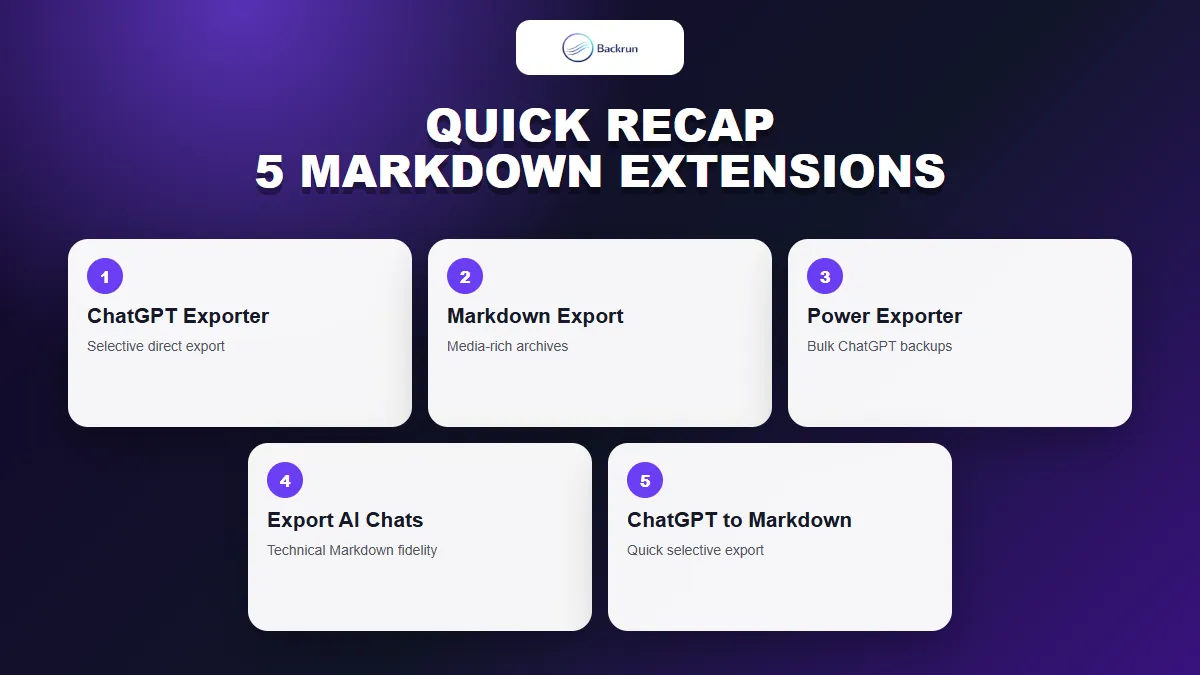
Choose ChatGPT Exporter for selective direct exports, ChatGPT Markdown Export for media-rich archives, ChatGPT Power Exporter for bulk backups, Export AI Chats for technical structure, or ChatGPT to Markdown for a lightweight selector.