AI Toolbox Chrome Extension Review: Features, Setup, and Limits
November 03, 20268 min read
Native AI chat sidebars become difficult to manage once you have hundreds of conversations spread across ChatGPT, Claude, Gemini, and Grok. The AI Toolbox Chrome extension adds folders, full-text search, prompt reuse, bulk export, bookmarks, and workflow controls directly to those sites.
This review explains what the extension actually does, how to set it up, where it saves data, and which features matter most. Details reflect the Chrome Web Store listing and product gallery checked on November 3, 2026.
1. What Is the AI Toolbox Chrome Extension?
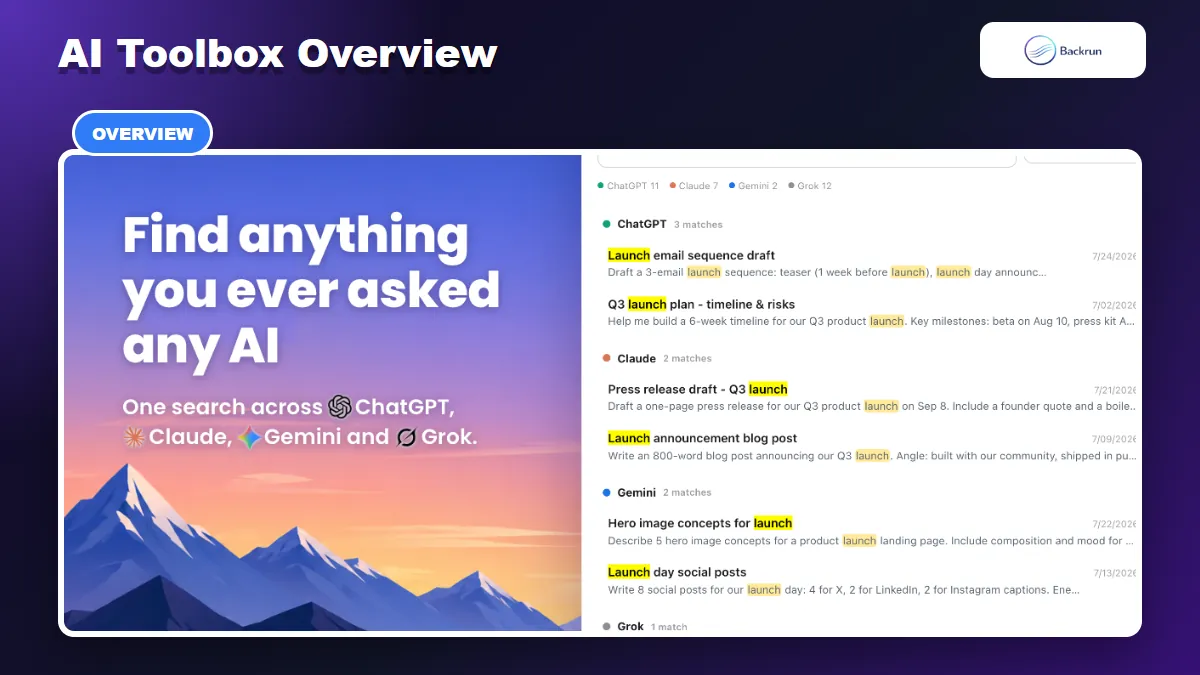
AI Toolbox can search conversation content across ChatGPT, Claude, Gemini, and Grok from one interface.
AI Toolbox, formerly called ChatGPT Toolbox, is a productivity extension for organizing and reusing AI conversations. It works with ChatGPT, Claude, Gemini, and Grok rather than creating another standalone chatbot.
Its main feature groups include:
Organization: nested folders, pins, bookmarks, labels, and Smart Tags.
Discovery: full-text search inside messages and cross-platform search.
Prompt workflows: saved prompts, placeholders, shortcuts, and prompt chains.
Chat management: bulk export, delete, archive, and folder-level backup.
Context tools: context mentions, context-window meter, and chat handoff.
The listing showed a Featured badge, a 4.6 rating from about 1,000 reviews, and 40,000 users during our check. Version 5.0.60 was updated on November 2, 2026, which matters because extensions that modify AI websites need frequent compatibility updates.
Who should use it? AI Toolbox makes the most sense for people who keep important research, code, writing, or project decisions inside AI chats. Someone with ten casual conversations may not need it; someone with hundreds of threads across several platforms can save substantial time.
To get started:
Install AI Toolbox from the Chrome Web Store.
Open ChatGPT to use the complete feature set.
Open the extension popup and enable Claude, Gemini, or Grok only if needed.
Allow indexing to finish before judging search quality on a large account.
Create one test folder, save one prompt, and export one non-sensitive chat before importing a large history.
2. Organize and Find Conversations Faster
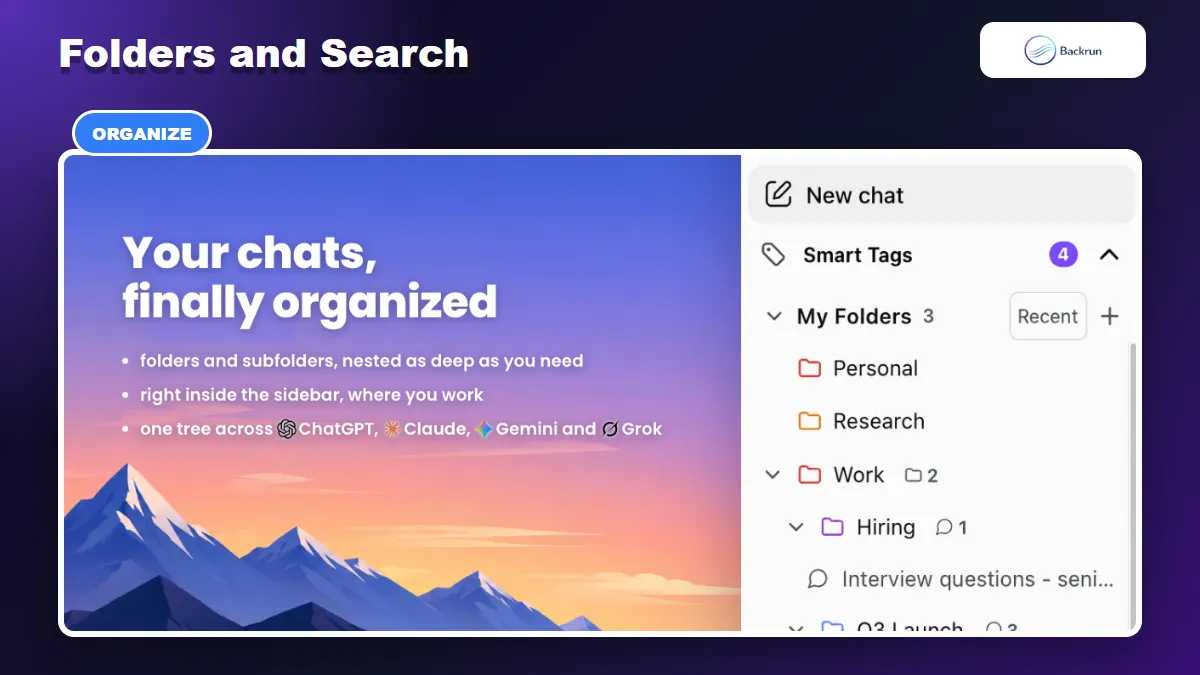
Nested folders appear inside the AI platform sidebar, so conversations can be organized without leaving the page.
Folders are the most visible improvement over native AI chat history. AI Toolbox supports nested folders, color markers, item counts, sorting, starring, and drag-and-drop movement. The same project folder can hold conversations from different supported assistants.
A practical folder structure could look like this:
Clients → one subfolder per client.
Research → topics, sources, and fact-checking threads.
Development → architecture, debugging, and code review.
Templates → reusable workflows and reference conversations.
Full-text search is more valuable than title search when you remember a phrase from an old answer but not the conversation name. You can search message content, restrict results by date or role, require terms, exclude terms, and jump to the matching message.
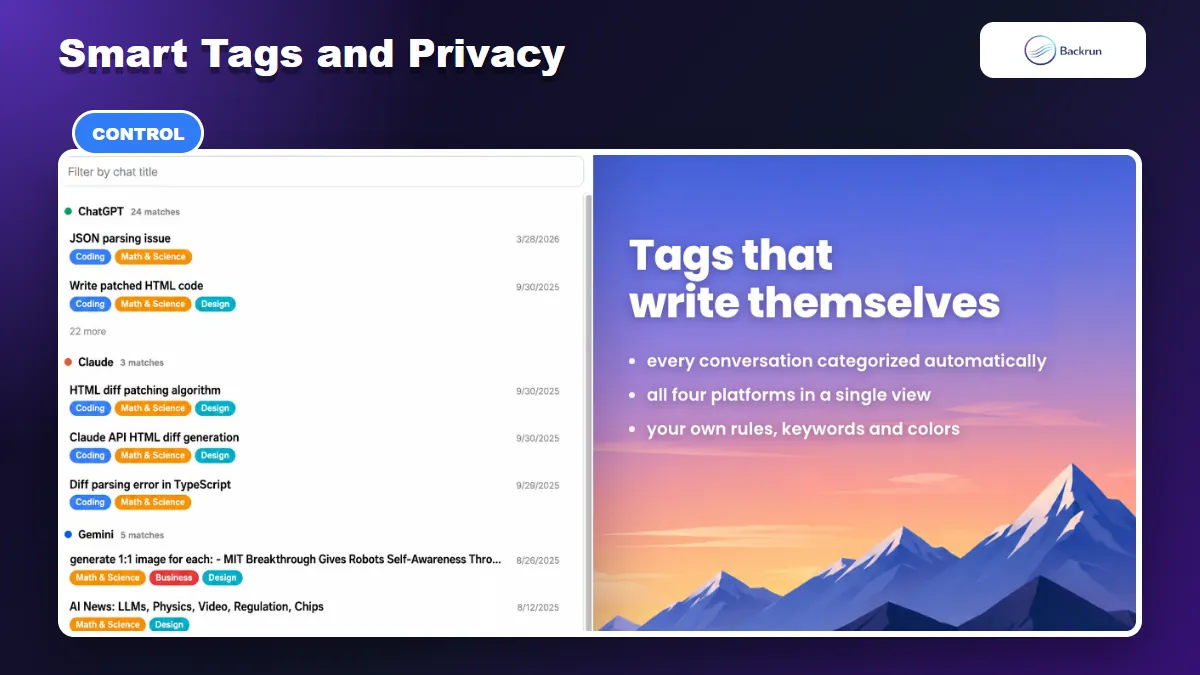
Cross-platform search groups results from ChatGPT, Claude, Gemini, and Grok. This is useful when a project moved between assistants and you no longer remember where a decision was made. Smart Tags add automatic categories such as coding, writing, research, math and science, and business. Custom rules can use your own keywords and colors.
Experience note: do not create a deep folder tree on the first day. Start with three to five broad categories, use search for discovery, and add subfolders only when a category becomes crowded. Excessive nesting can recreate the same navigation problem the extension is meant to solve.
3. Reuse Prompts and Build Repeatable Workflows
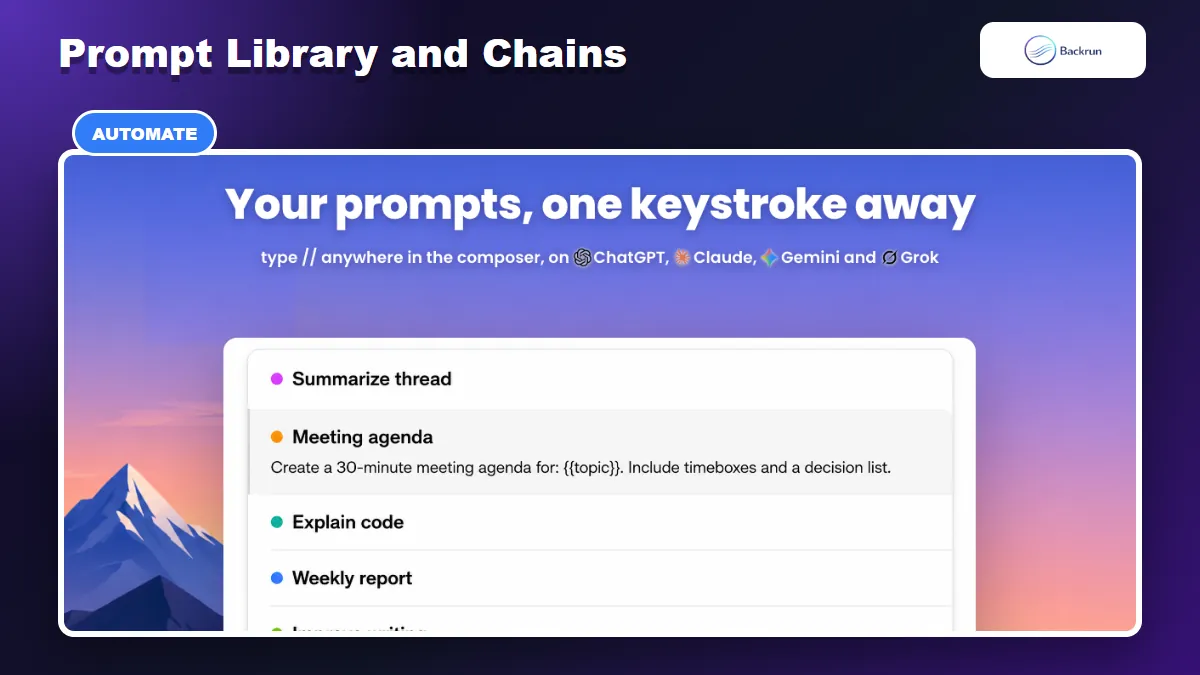
Saved prompts can include variables and can be inserted from the composer with a shortcut.
The Prompt Library turns frequently repeated instructions into reusable templates. Prompts can contain placeholders such as {{topic}}, allowing the same structure to be reused without manually editing every line.
For example, a marketer could save a weekly report prompt with variables for campaign name, date range, goal, and audience. A developer could save a code-review prompt with variables for language, framework, constraints, and expected output.
The normal workflow is:
Create a saved prompt and give it a clear task-based name.
Add placeholders only for information that changes between runs.
Type // in the composer to find and insert the prompt.
Fill the variables and review the final instruction before sending.
Prompt Chaining goes further by running several saved prompts in sequence. A content workflow might research a topic, create an outline, draft sections, and run an editorial check. Each step builds on the previous response, with a progress indicator showing the active stage.
Context Mentions use @@ to bring an earlier conversation into a new thread. Short chats can be inserted directly; longer chats may be summarized so they do not consume the entire context window. This is useful, but summaries can omit edge cases. Keep the original conversation accessible when exact details matter.
Practical limitation: prompt chains automate sequence, not judgment. Review intermediate outputs before using a chain for legal, financial, medical, production-code, or client-facing work.
4. Export, Back Up, and Clean Up AI Chats
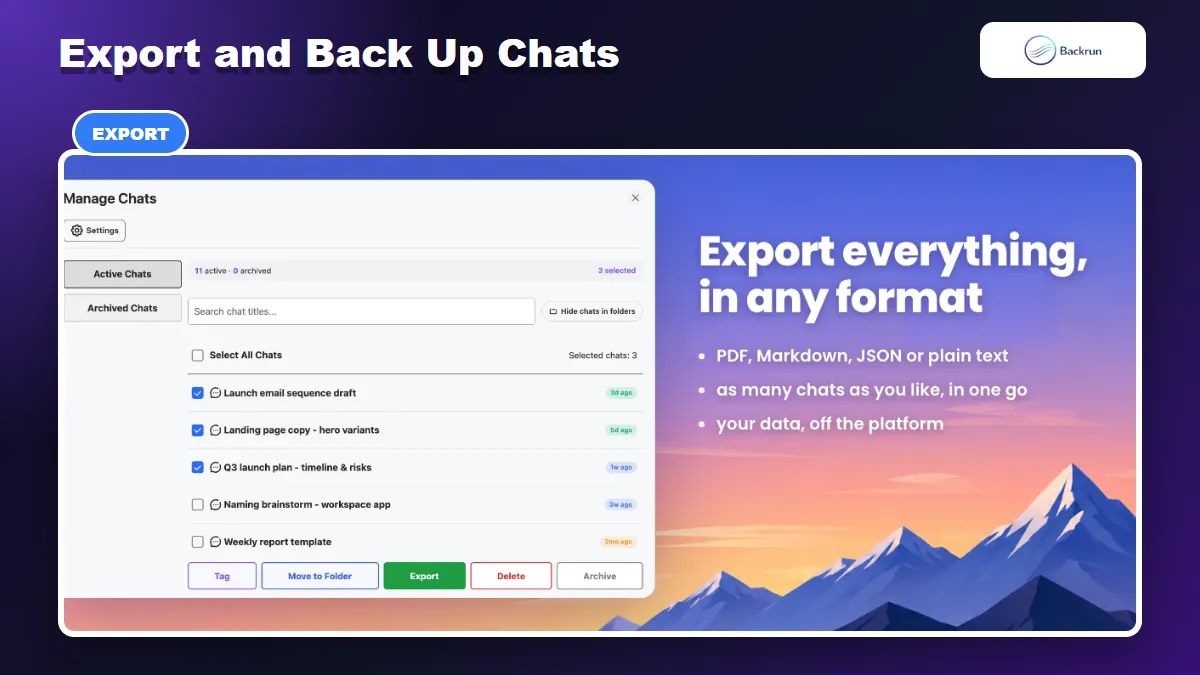
AI Toolbox can select multiple chats and export, archive, move, tag, or delete them in one workflow.
AI Toolbox supports single-chat and bulk export in TXT, Markdown, JSON, PDF, and ZIP formats. Folder exports preserve nested structure, which is useful when building a local archive instead of downloading unrelated files into one directory.
Markdown exports include YAML frontmatter such as title, dates, model, and source URL. That makes the files easier to import into Obsidian or another Markdown knowledge base. JSON is better when the archive may later be processed by scripts, while PDF suits fixed-layout sharing.
For a safer backup:
Select a small folder before exporting an entire account.
Choose Markdown or JSON for reusable data, or PDF for a readable snapshot.
Open several exported files and verify message order, code blocks, tables, sources, and attachments.
Save the archive outside the browser profile and protect it like any other personal dataset.
Only then use bulk delete or archive for old conversations.
Large export jobs include progress tracking, retries, and duplicate handling. The listing says large jobs stream to disk rather than keeping the complete archive in browser memory.
If export is your only requirement and you do not need folders, search, or prompt management, a focused tool may be simpler. Backrun's AI Chat Exporter handles selected or complete conversations, while the comparison of ChatGPT to Markdown extensions covers more dedicated Markdown options.
5. Smart Tags, Privacy, and Important Limits
Smart Tags classify conversations across platforms using local rules and customizable categories.
Smart Tags automatically group conversations into common categories and let you create custom keyword rules. Message bookmarks add a color, note, and timestamp to an individual response, so an important decision does not disappear inside a long thread.
Other useful features include a context-window meter, word and character counts, media gallery, audio export, usage tracking, collapsible messages, and a Claude Artifact Vault. Not every extra feature is available on every platform, so check the platform notes before assuming ChatGPT and Claude behave identically.
Privacy model: the listing says conversation content and the cross-platform search index are cached locally in browser storage. Organizational data such as folders, saved prompts, bookmarks, tag rules, pinned items, and aggregate usage counts can sync so the setup follows you across devices.
That distinction matters. “Local search” does not mean every setting remains local. Before indexing business conversations, review the current privacy policy, Chrome permissions, sync behavior, and account controls. Use a separate browser profile when personal and company AI accounts must remain isolated.
Important limits include:
Desktop Chromium only: mobile browsers are not supported.
Website changes: ChatGPT, Claude, Gemini, or Grok updates can temporarily break injected controls.
Indexing time: large histories may need time before complete search results appear.
Feature differences: ChatGPT has the broadest coverage; other platforms share a common feature base plus platform-specific tools.
Browser storage: local indexes still need protection on shared or unmanaged devices.
Quick Recap
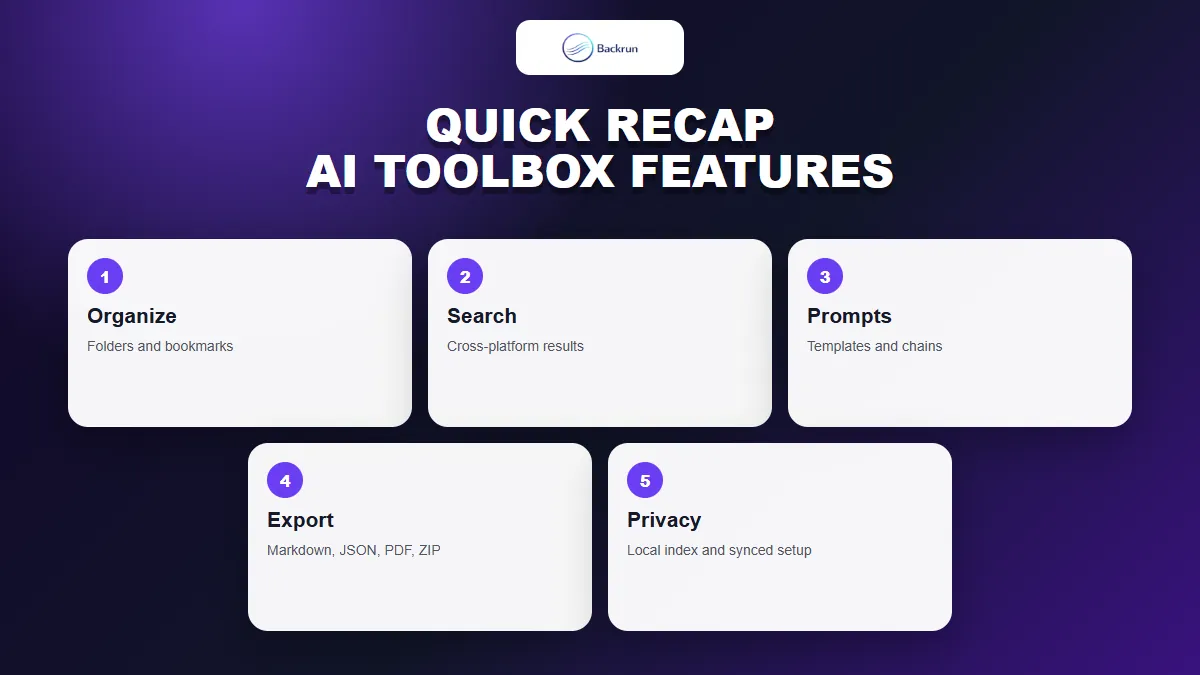
AI Toolbox is most valuable when folders, search, prompt reuse, and bulk management are needed together.
Area
What AI Toolbox adds
Best use
Check first
Organization
Nested folders, pins, bookmarks, labels
Large AI chat libraries
Avoid excessive folder depth
Search
Message-level and cross-platform search
Recovering old answers and decisions
Allow indexing to complete
Prompts
Templates, variables, chains, context mentions
Repeatable writing and research workflows
Review automated outputs
Export
TXT, Markdown, JSON, PDF, ZIP
Backup and knowledge-base migration
Test a small archive first
Privacy
Local conversation index with synced organization data
Fast retrieval across devices
Review permissions and sync policy
The AI Toolbox Chrome extension is a strong fit for heavy AI users who need organization, discovery, reusable prompts, and bulk management in one product. It is excessive for occasional chat use or for someone who only needs a single export format.
Start with one platform and non-sensitive conversations, confirm search and export quality, then enable the other assistants. Also follow Google's guidance for managing Chrome extensions and remove permissions you no longer need.